1. Choose a date
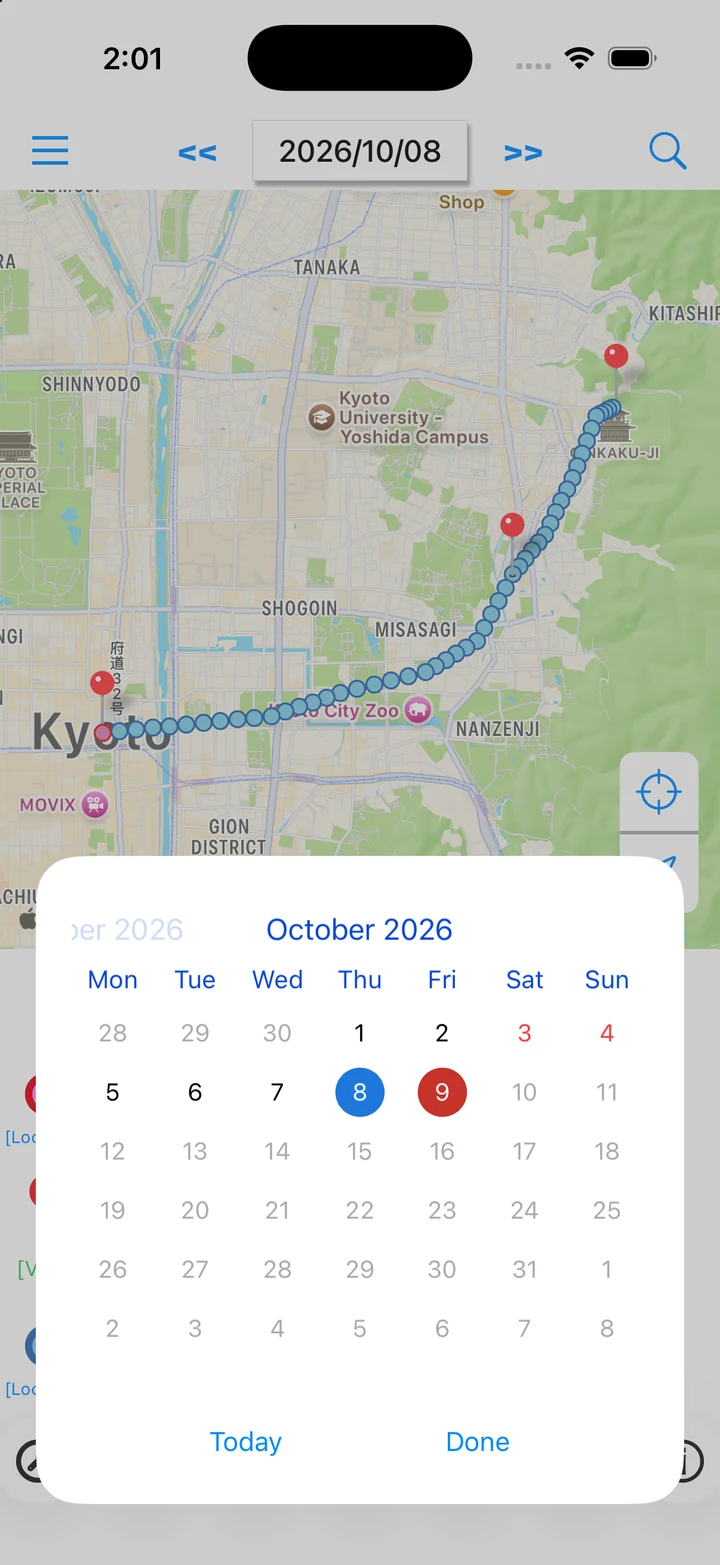
- Tap the date at the top to open the calendar picker.
- Choose a date and tap Done. Tap Today to return to today.
- Use the << and >> buttons beside the date to move to the previous or next day.
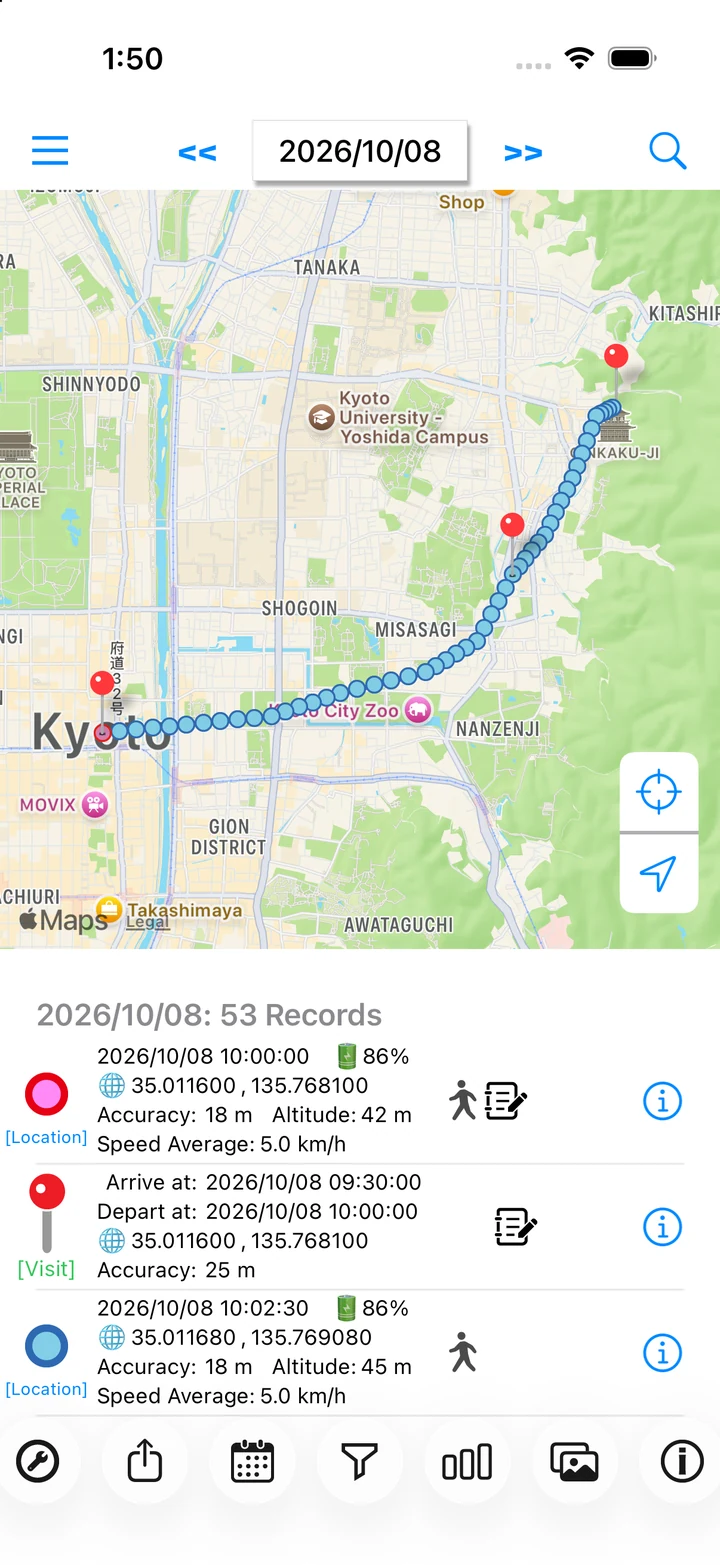
2. Read location and visit details
A Location entry is a point recorded at a particular time. A Visit has arrival and departure times. Route lines join recorded points and may not exactly follow roads or turns.
- Select a row in the list to see its position on the map.
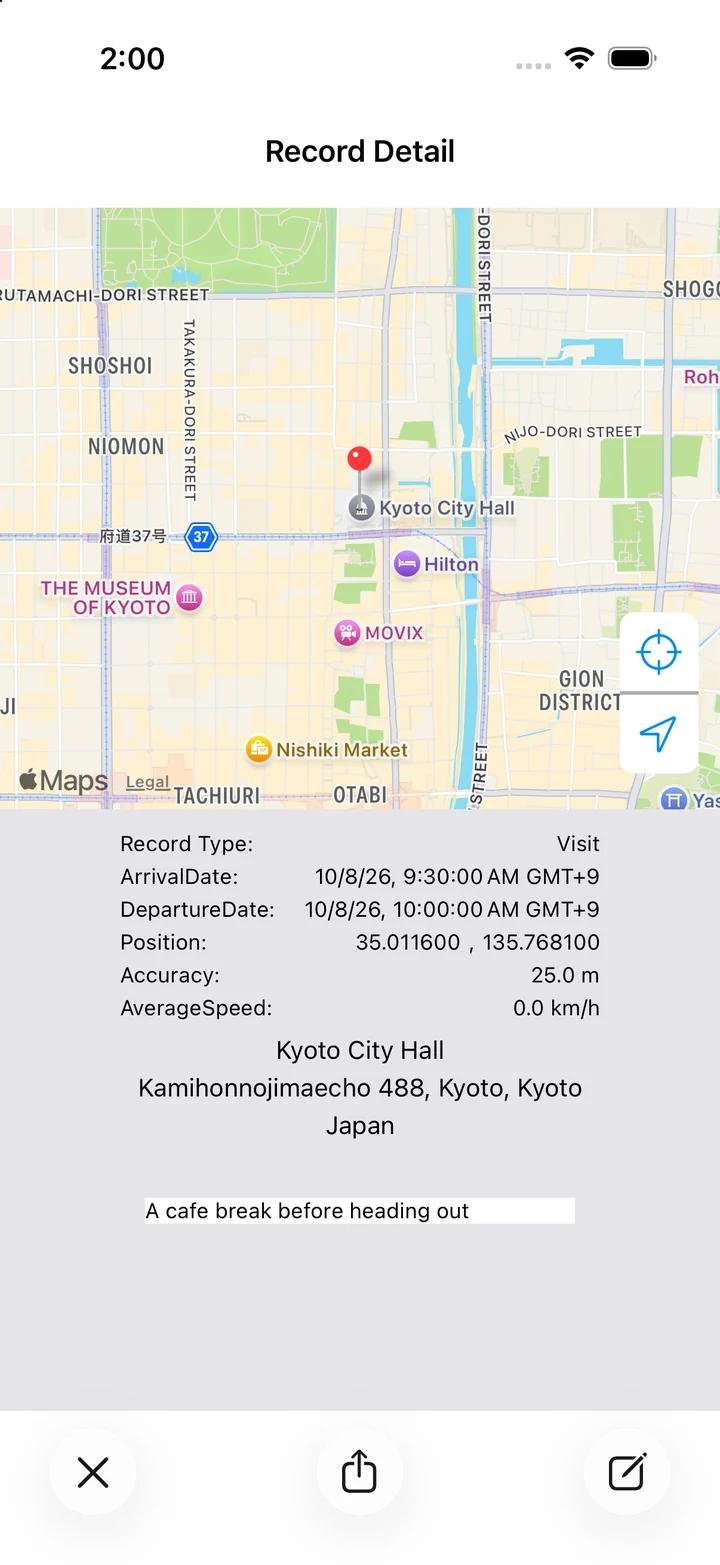
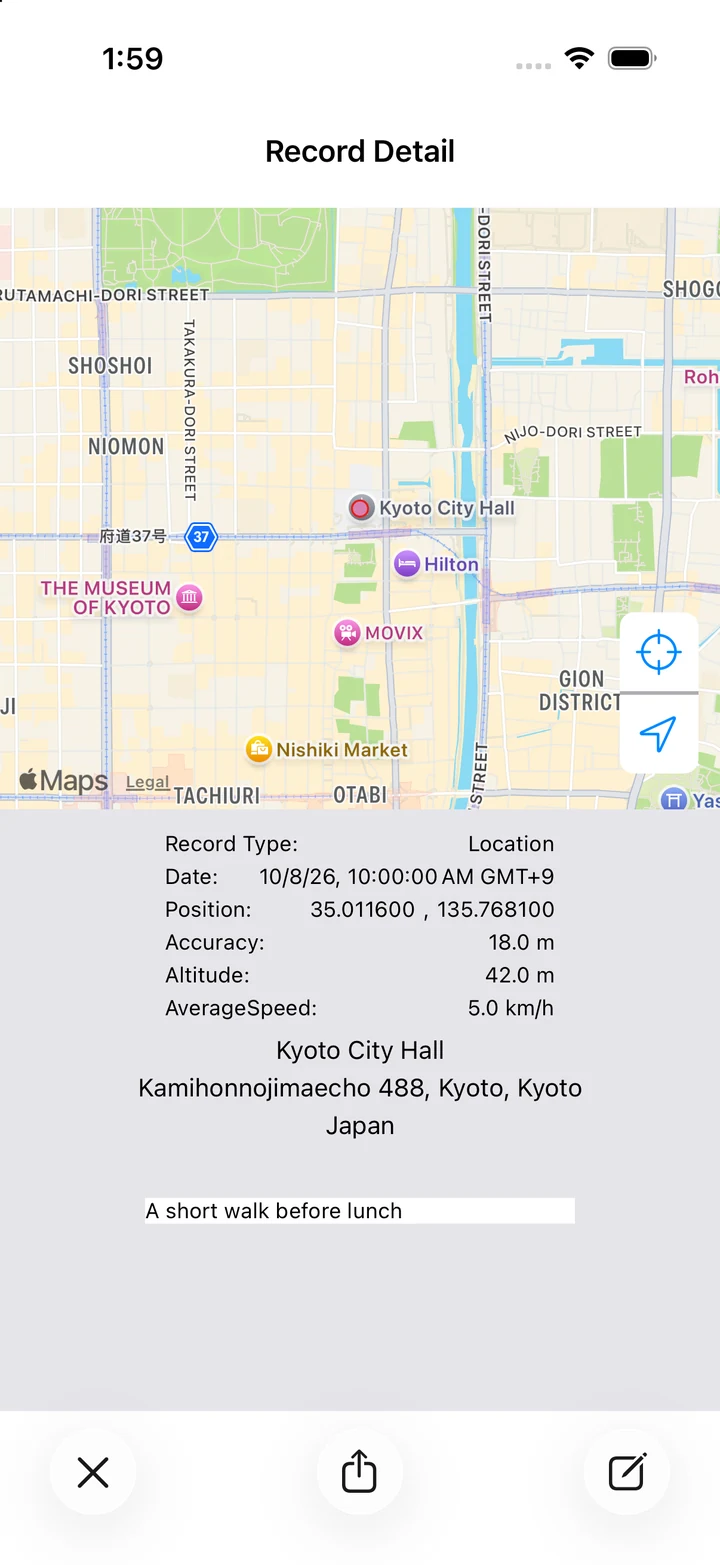
- Tap the information (i) button on the right to open its details. Check location, accuracy, and timestamps.
- Use the note editor button in the details to add a comment to that record.
3. Filter the records shown
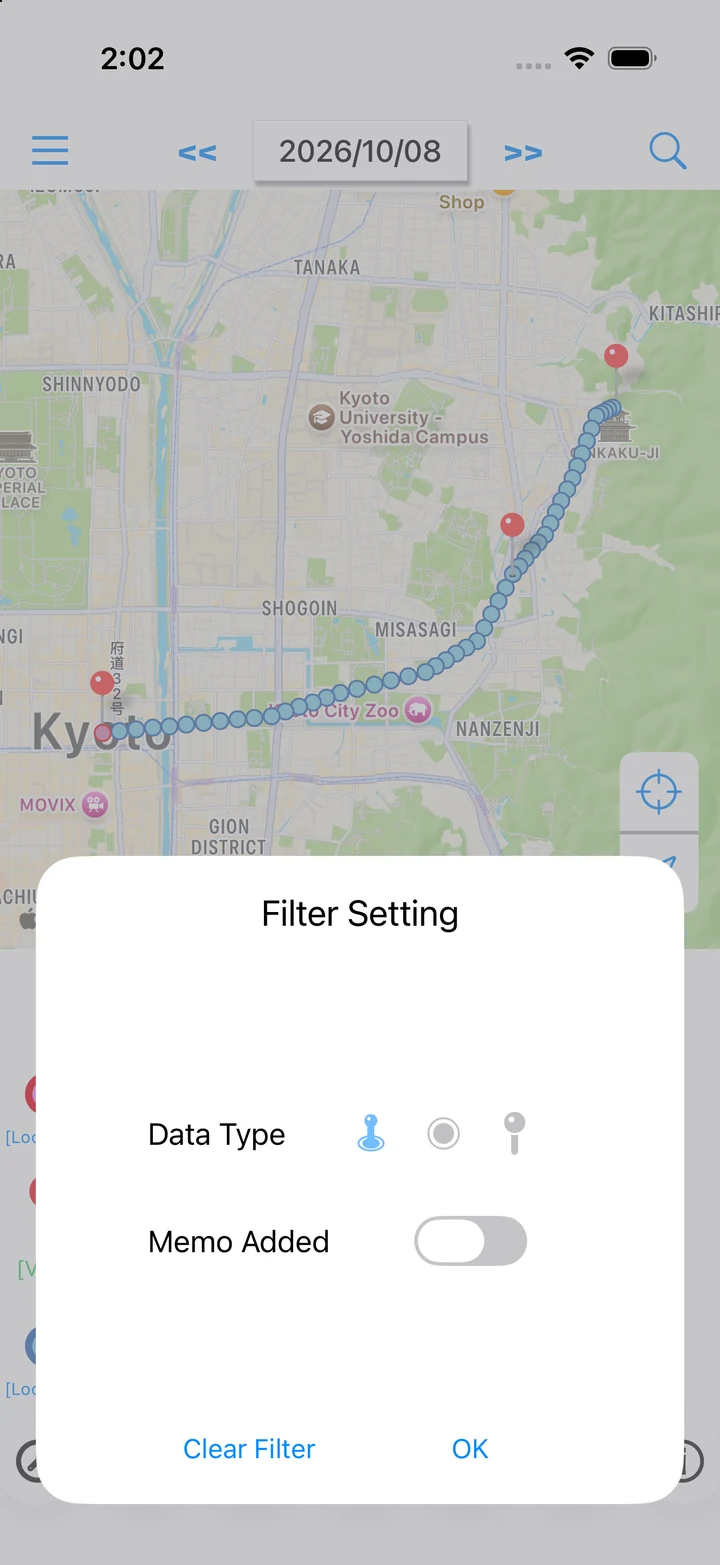
- Tap the funnel (Filter) button in the bottom toolbar.
- Choose both Locations and Visits, Locations only, or Visits only.
- Turn Memo Added on to show records with notes. Tap OK to apply.
- Tap Clear to remove the conditions and return to the full list.
4. View daily information and graphs
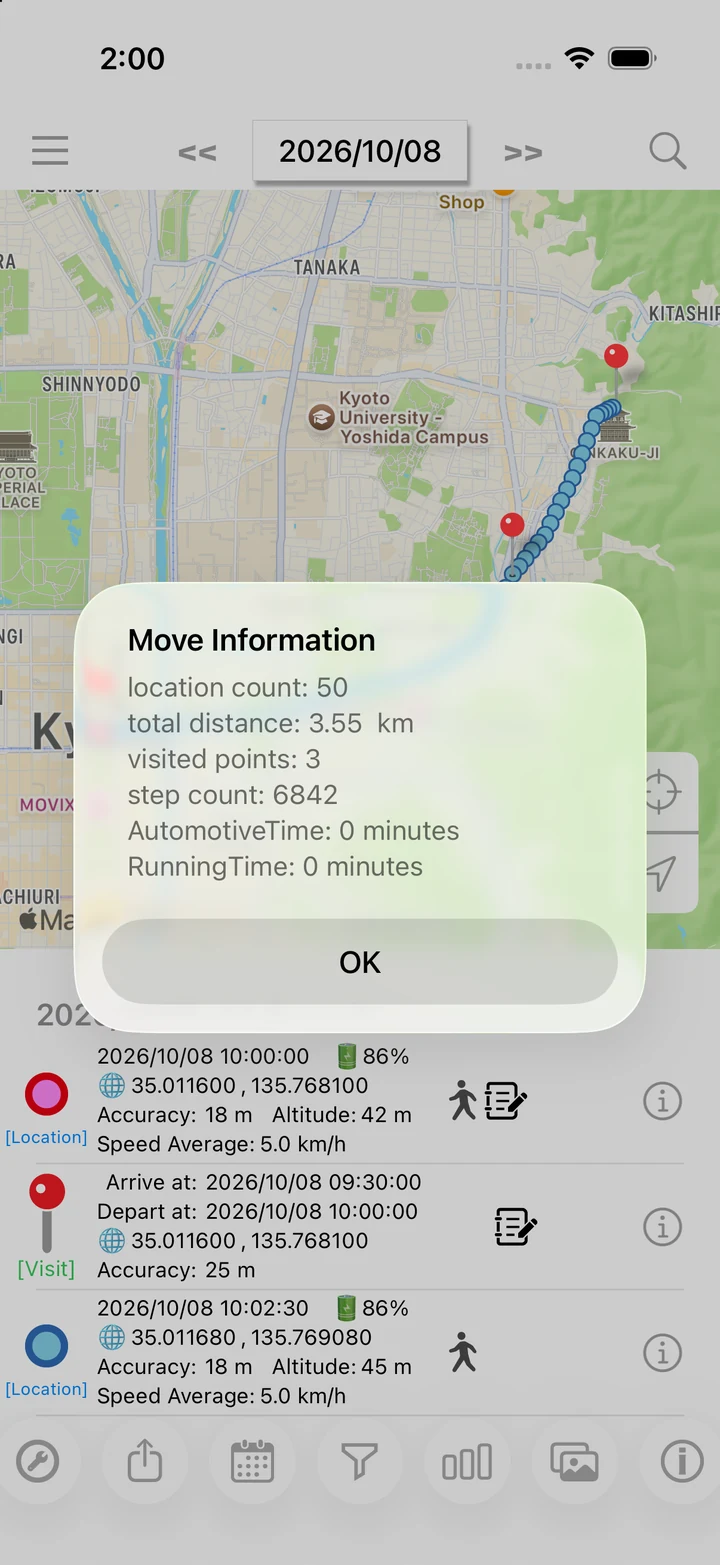
- Tap the information (i) button at the bottom right to open the day's travel information.
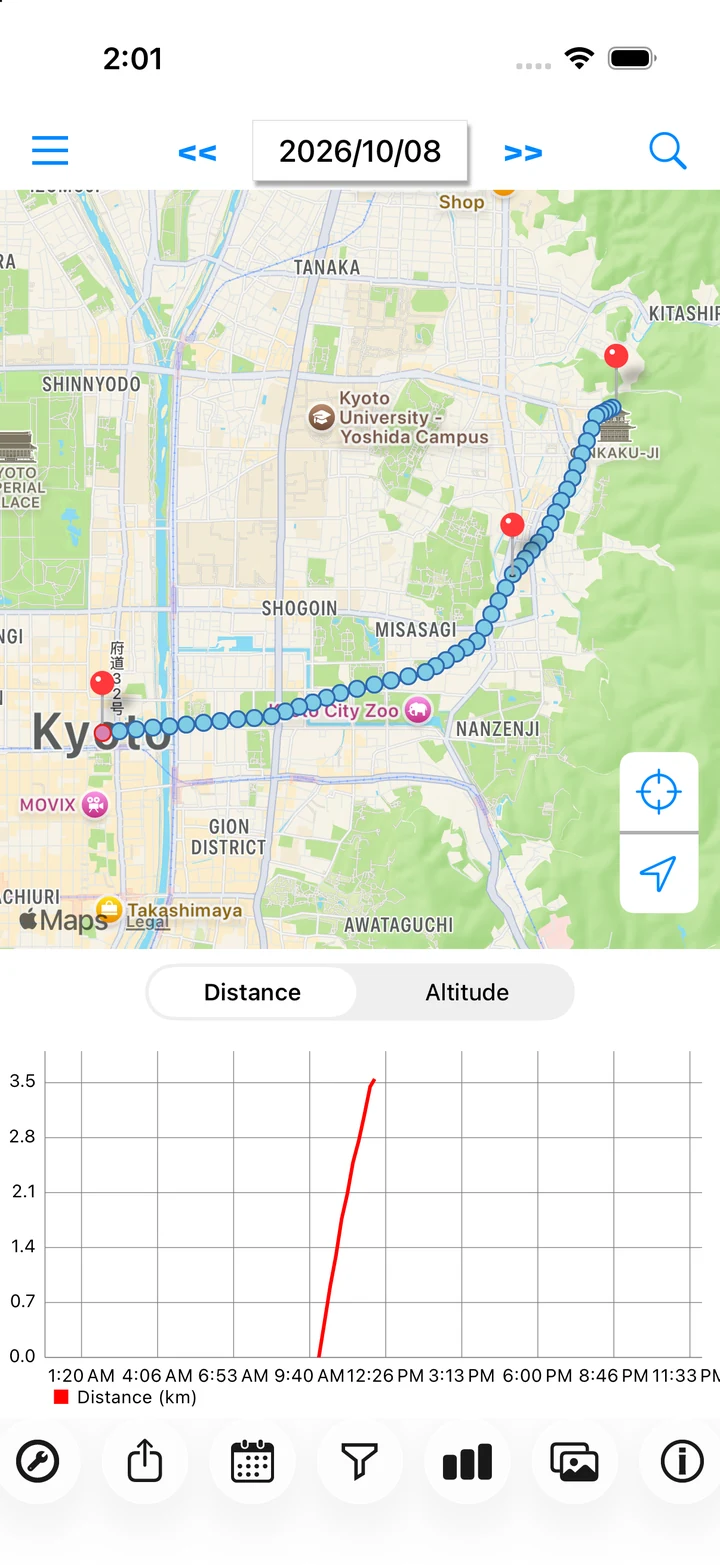
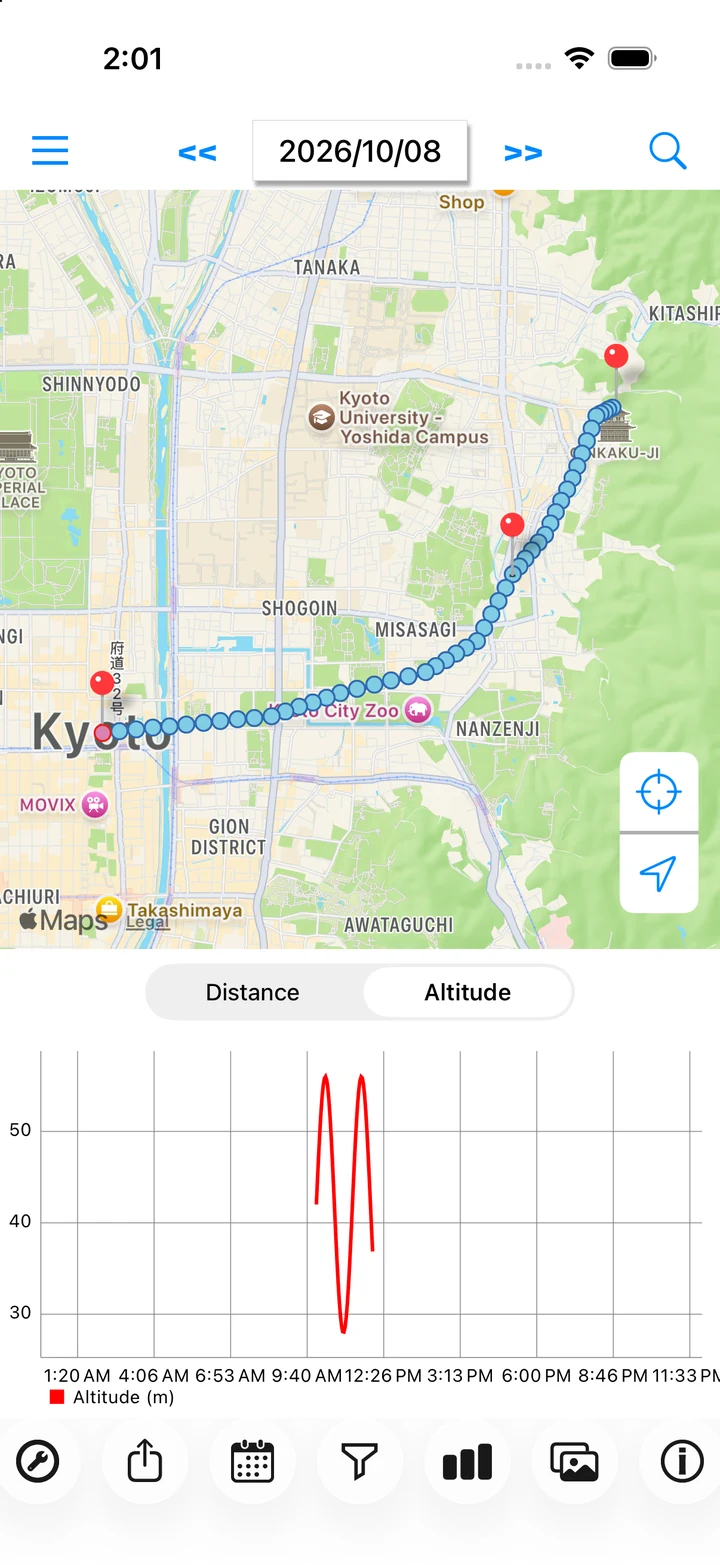
- Tap the bar-chart button to show distance and altitude graphs.
- Switch between Distance and Altitude. Tap the chart button again to return to the list.