
1. Choose a record and edit its note
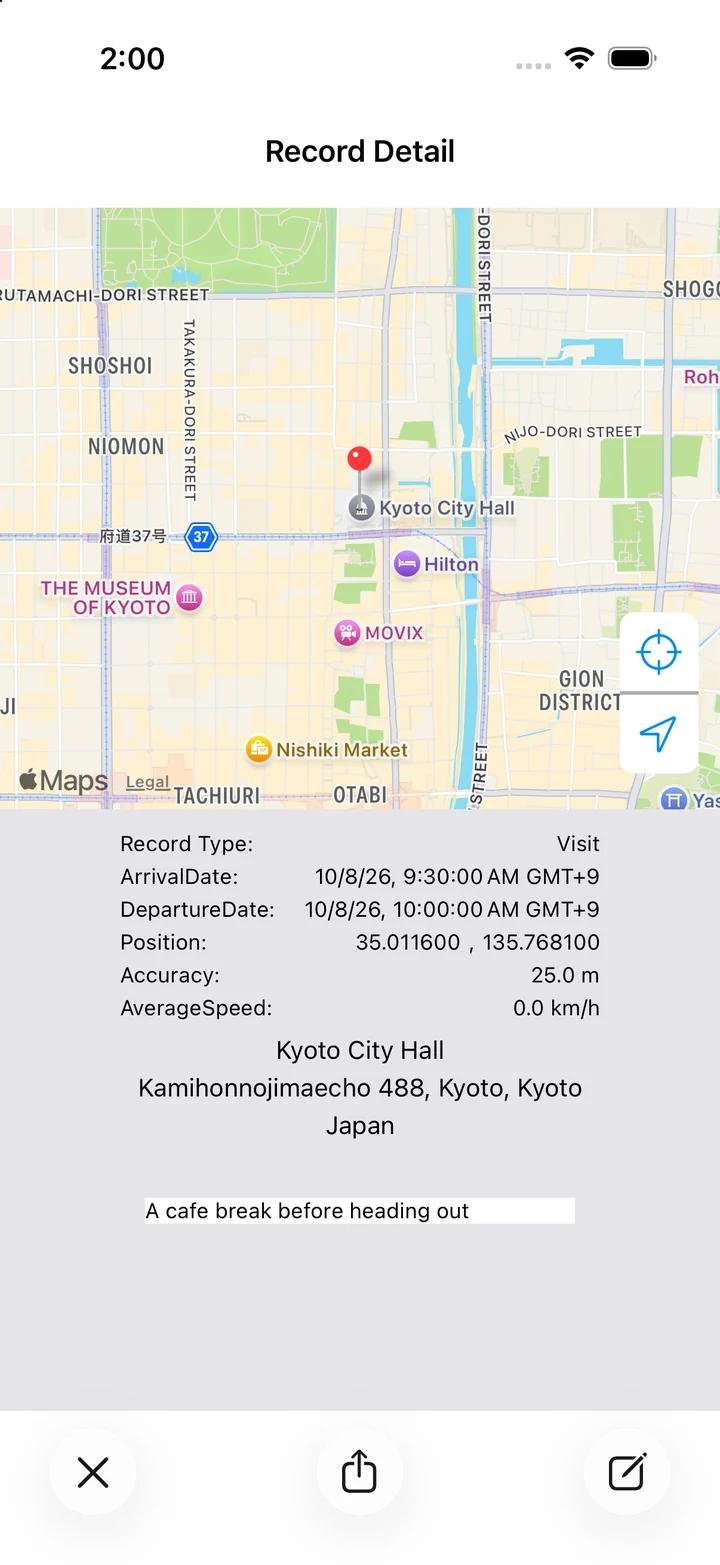
- In the daily view, tap the information (i) button for the location or visit you want to annotate.
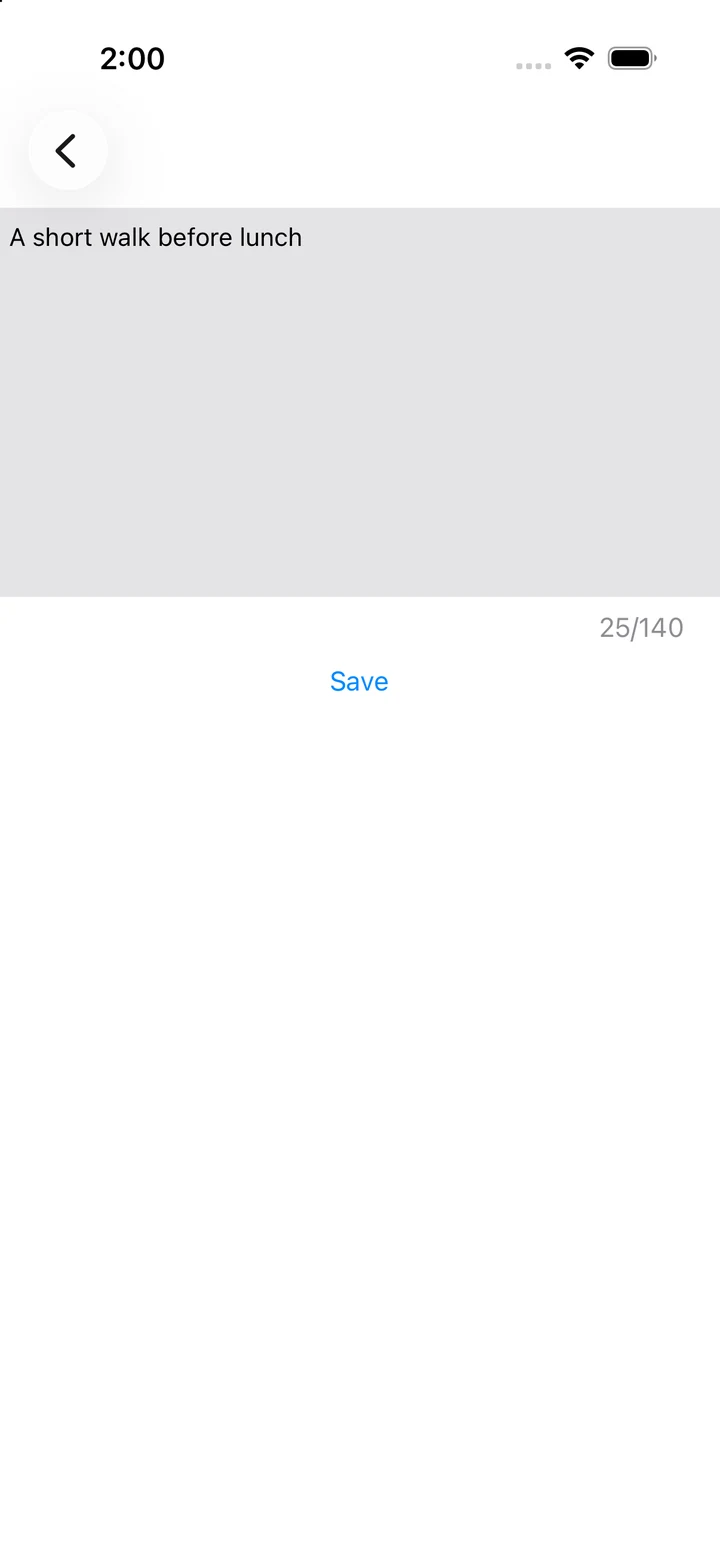
- In the record details, tap the paper-and-pen button at the bottom right to open the note editor.
- Enter your note. Check the character count and keep it within 140 characters.
- Tap Save, then check that the note appears in the details and list.
2. Find records with notes
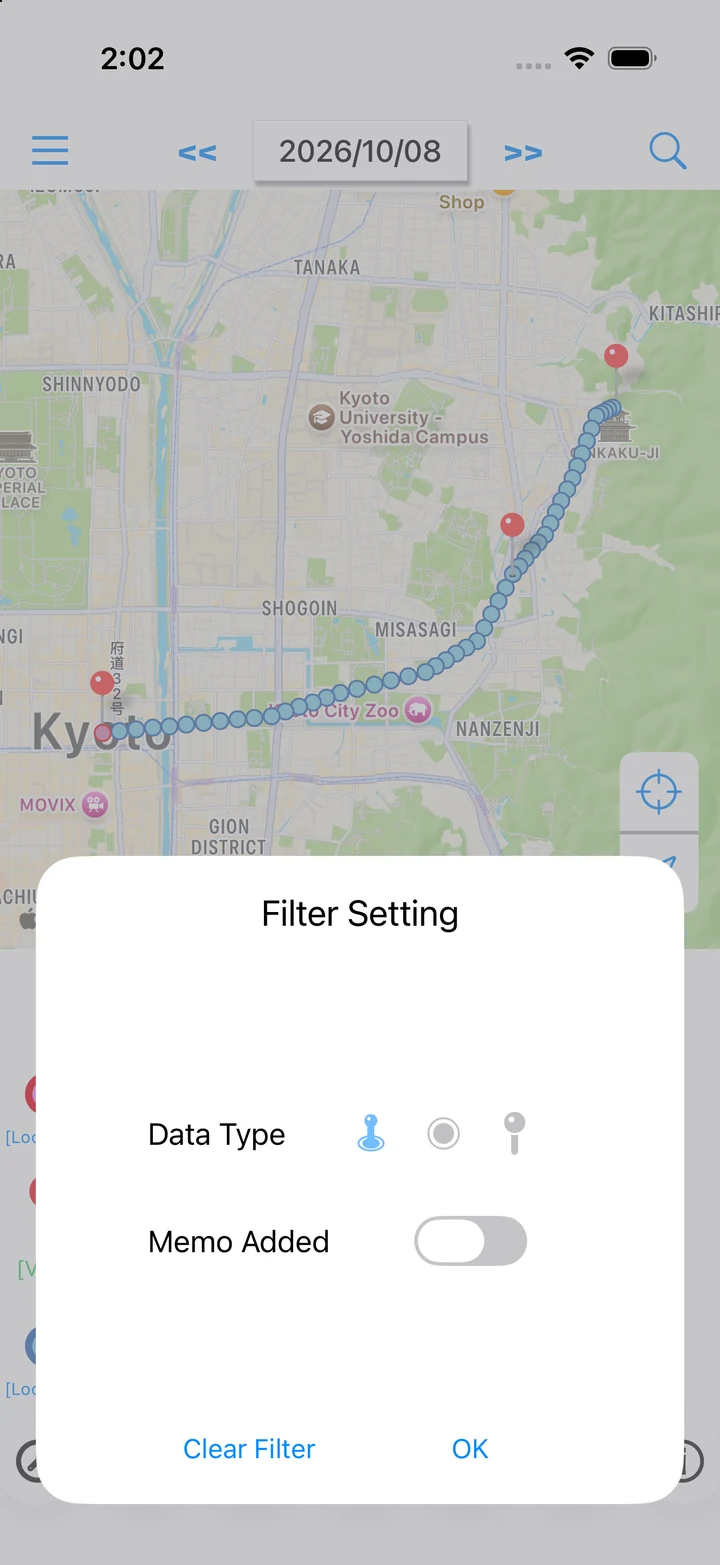
- Tap the funnel (Filter) button in the daily view.
- Turn Memo Added on, then tap OK.
- To remove the filter, open it again and tap Clear.
Ideas for your notes
A shop to revisit on your next trip, documents received during a visit, or a meeting point for an everyday errand. Leave a few words that will help you remember later.