
1. Choose a format EXPORT: PRO
| Format | Data and uses |
|---|---|
| GPX | Location points for the displayed day. For tools that handle GPS tracks. Visits and notes are not included. |
| CSV | All stored location and visit history. Useful for reviewing data in a spreadsheet. |
| JSON | All stored location and visit history. For keeping a file in LogMyPlace's format and importing it later. |
2. Export a day's locations as GPX
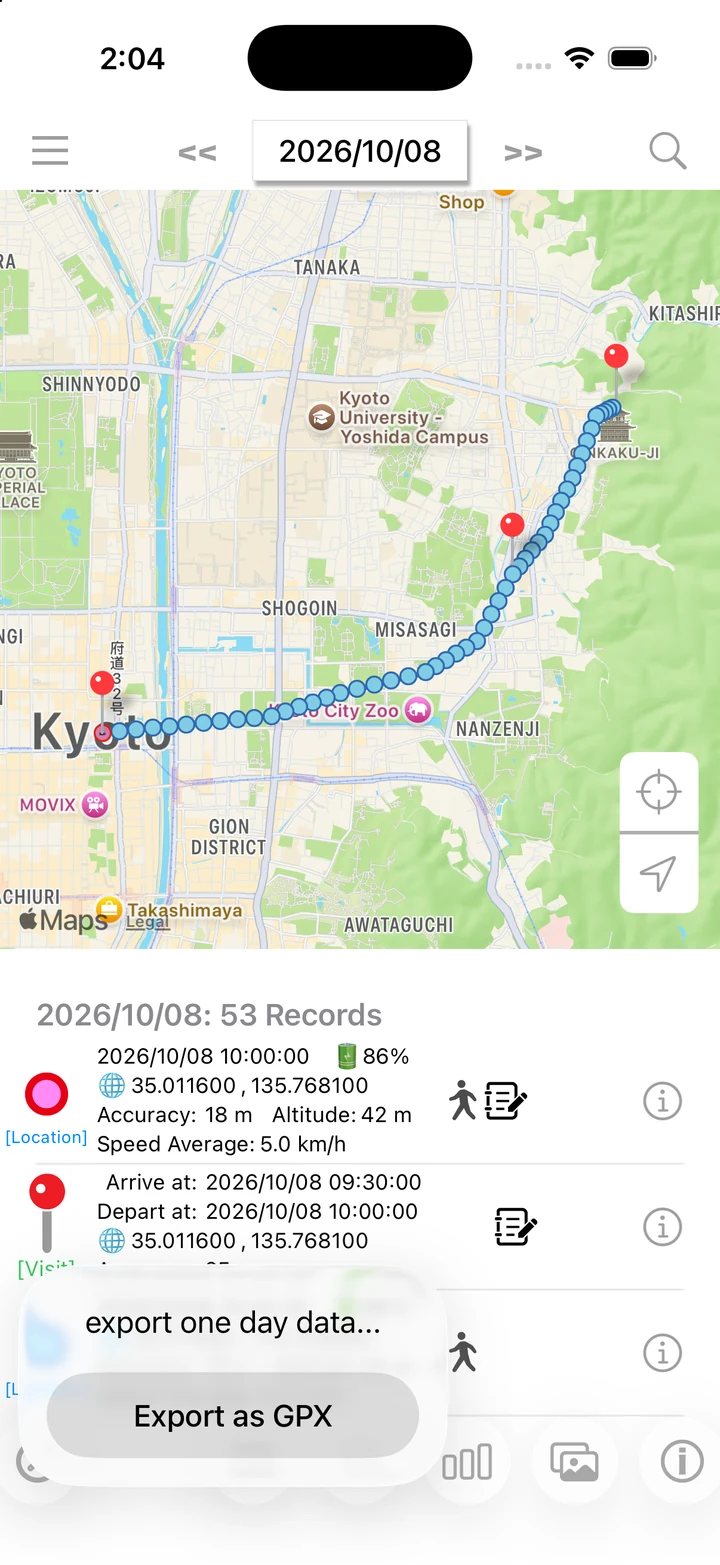
- In the daily view, choose the date you want to export.
- Tap the upward-arrow (Export) button in the bottom toolbar.
- Choose Export as GPX.
- In the share sheet, choose Save to Files or another destination, then select where to save it.
3. Export your full history as CSV or JSON
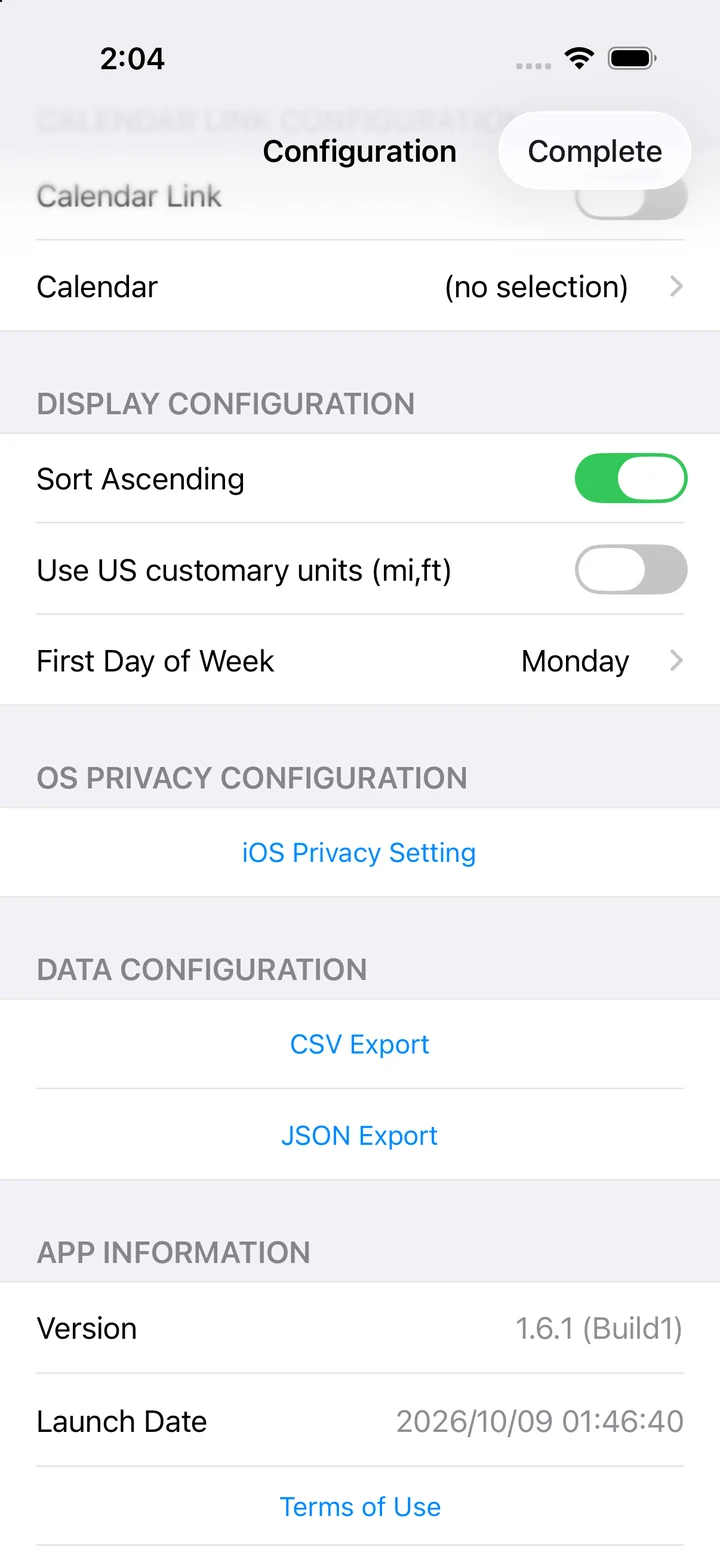
- Scroll down in Settings to the Data section.
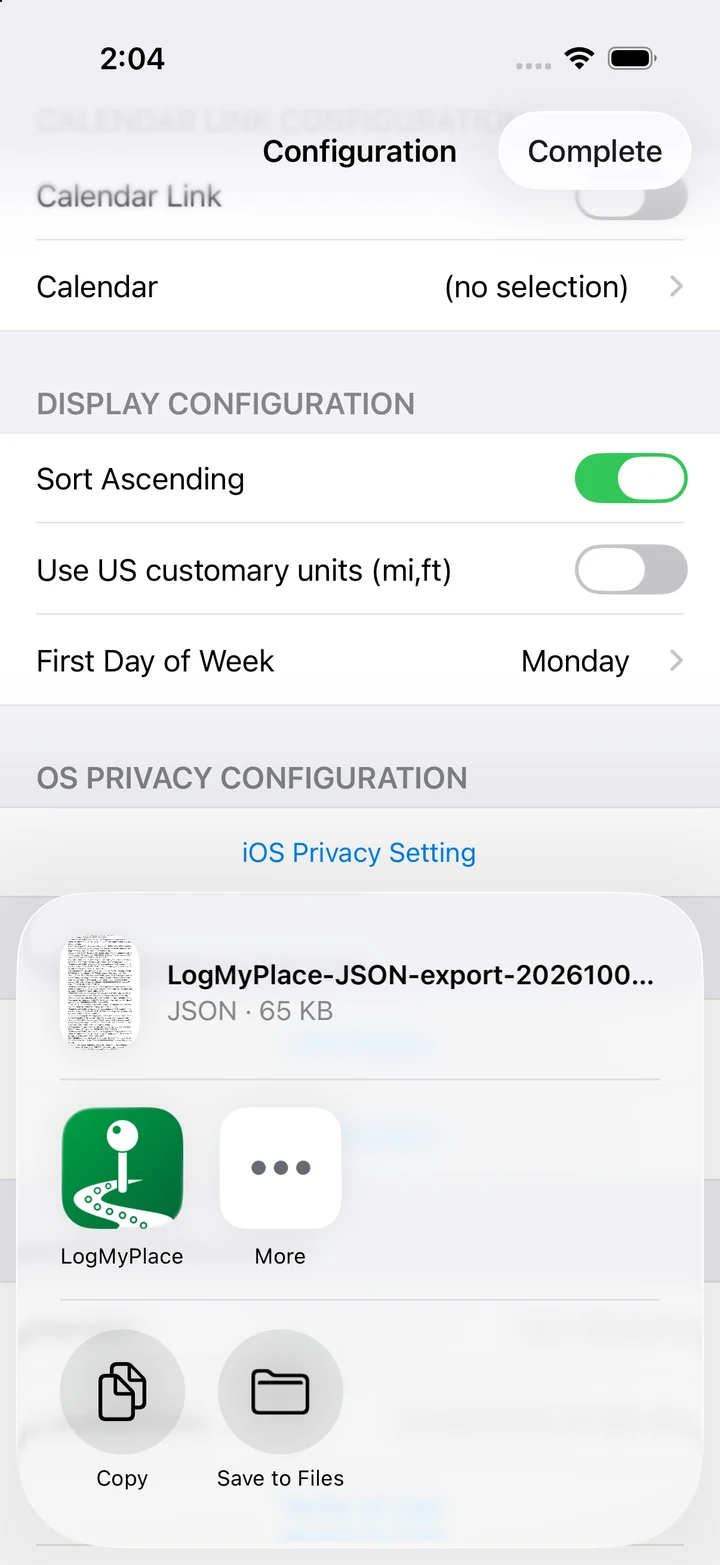
- Choose CSV Export or JSON Export.
- Save the file from the share sheet, then check it at the destination.
4. Import LogMyPlace CSV or JSON
- Open a CSV or JSON file exported by LogMyPlace in the iPhone Files app or another file app.
- Choose LogMyPlace through the share sheet or the Open in App option.
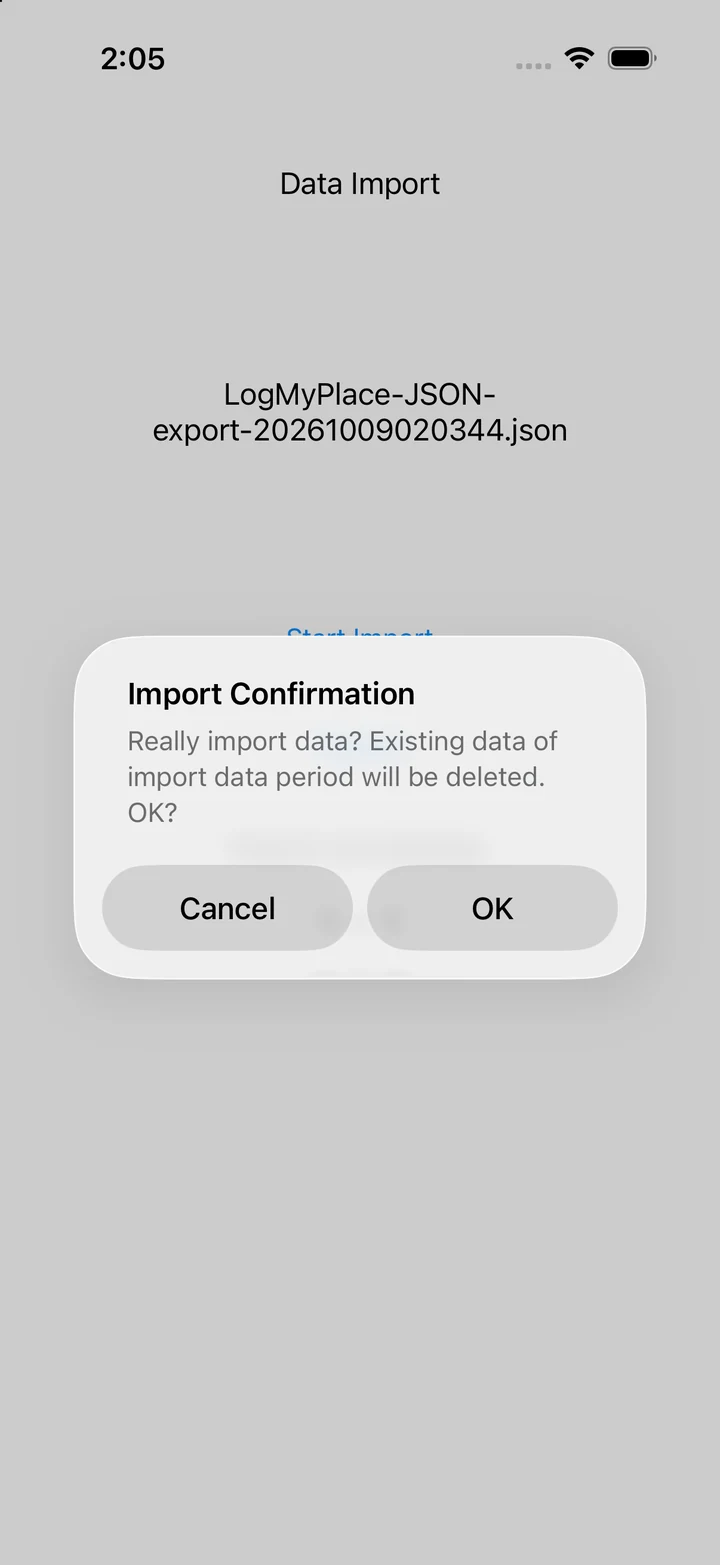
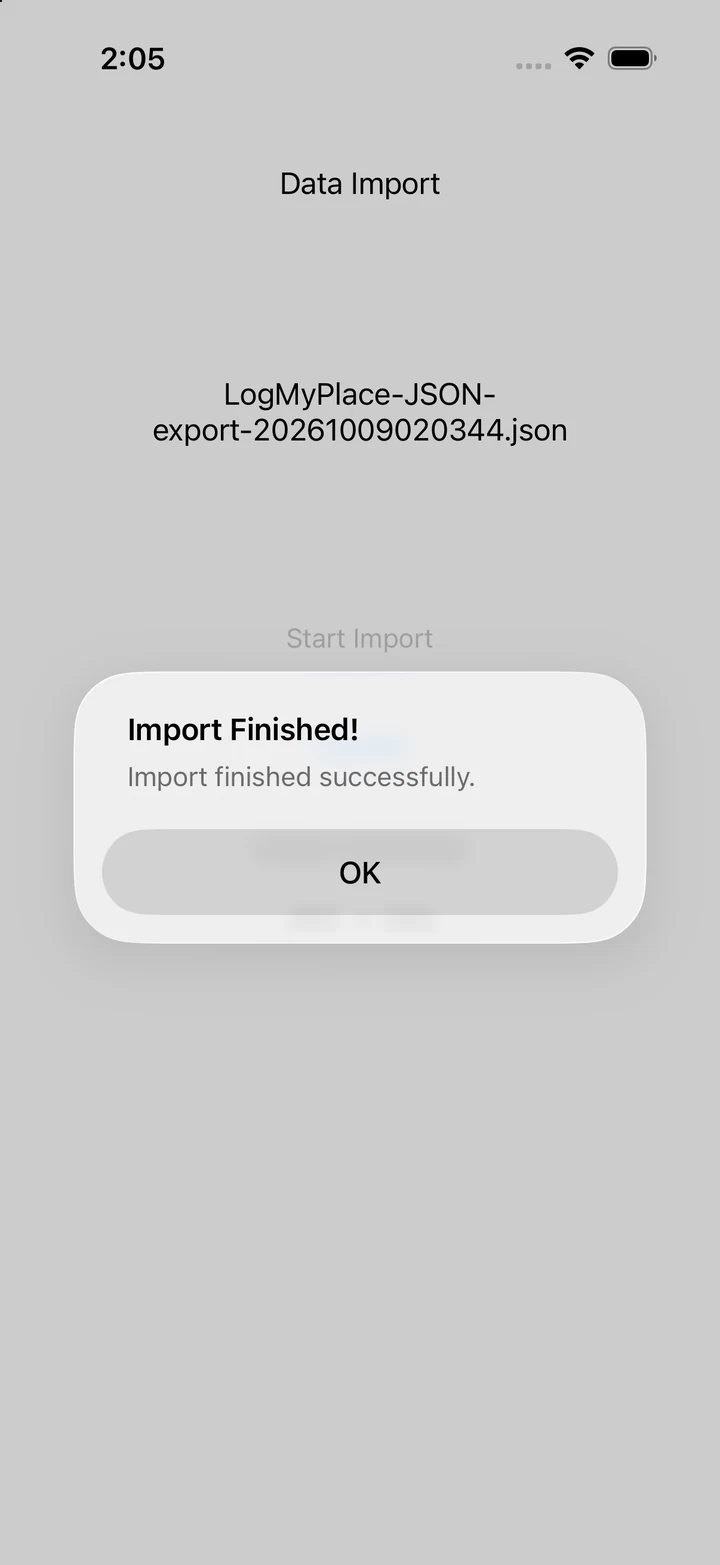
- Check the filename and the period covered by the file, then tap Import Start. Read the warning about deleting existing records. Tap OK only if you want to proceed.
- After importing, open the affected dates and check locations, visits, and notes.
Only LogMyPlace's own data formats are supported. GPX, Google Timeline, and other apps' data cannot be imported directly. Changing a file extension does not convert its format.